jupyterhub-fancy-profiles works with standard KubeSpawner profile_list configuration. You define profiles the same way you would with regular KubeSpawner — this package renders them with an enhanced UI.
For detailed information on configuring KubeSpawner profiles, see the KubeSpawner documentation.
When users start their server, they can select an image in one of three ways depending on how the profile is configured. These flows can be combined within a single profile.
Default images
The most common setup. Administrators define a set of pre-configured images and users pick one from a list.
Users see a set of image cards with names and descriptions. They select one, optionally choose a resource tier, and click Start.
Define images as choices in your profile’s image option. Set "default": True on a choice to make it the pre-selected option.
c.KubeSpawner.profile_list = [
    {
        "display_name": "CPU only",
        "description": "For use with just CPU, no GPU",
        "profile_options": {
            "image": {
                "display_name": "Image",
                "choices": {
                    "minimal": {
                        "display_name": "Jupyter Minimal Notebook",
                        "description": "Minimal Python image with JupyterLab",
                        "default": True,
                        "kubespawner_override": {
                            "image": "quay.io/jupyter/minimal-notebook:python-3.13"
                        },
                    },
                    "pangeo": {
                        "display_name": "Pangeo Notebook",
                        "description": "Python image with scientific, dask and geospatial tools",
                        "kubespawner_override": {
                            "image": "pangeo/pangeo-notebook:2023.09.11"
                        },
                    },
                },
            },
            "resources": {
                "display_name": "Resource Allocation",
                "choices": {
                    "small": {
                        "display_name": "1 GB RAM, 1 CPU",
                        "default": True,
                        "kubespawner_override": {
                            "mem_limit": 1073741824,
                            "cpu_limit": 1,
                        },
                    },
                },
            },
        },
    },
]
This configuration renders like below.
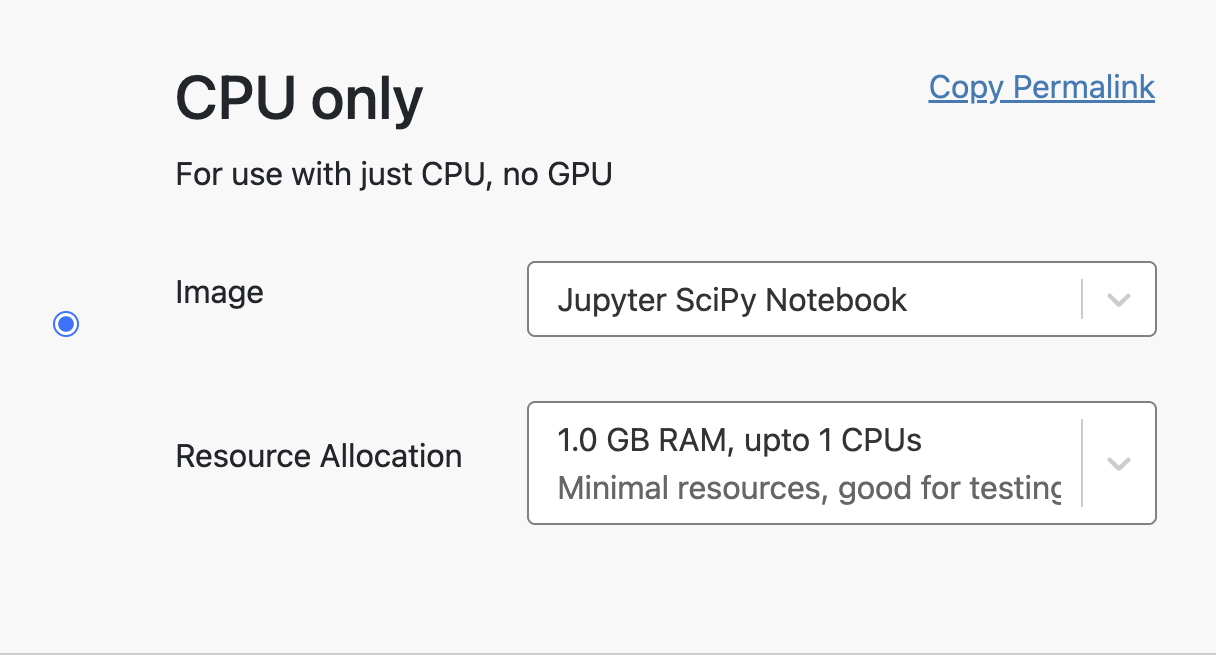
The profile above, rendered as selectable image and resource cards.
Bring your own image
Users can type in a docker image name to use a pre-existing image from a public registry. This is useful when users have their own images or want to use an image not in the default list.
Users select the “Specify an existing docker image” option, type in an image name like quay.io/my-org/my-image:latest, and click Start.
Use the unlisted_choice option to let users type in a custom value in a free-form field, such as a docker image. The {value} placeholder is replaced with whatever the user types in.
"unlisted_choice": {
    "enabled": True,
    "display_name": "Custom image",
    "display_name_in_choices": "Specify an existing docker image",
    "description_in_choices": "Use a pre-existing docker image from a public docker registry",
    "validation_regex": "^.+:.+$",
    "validation_message": "Must be a publicly available docker image, of form <image-name>:<tag>",
    "kubespawner_override": {"image": "{value}"},
}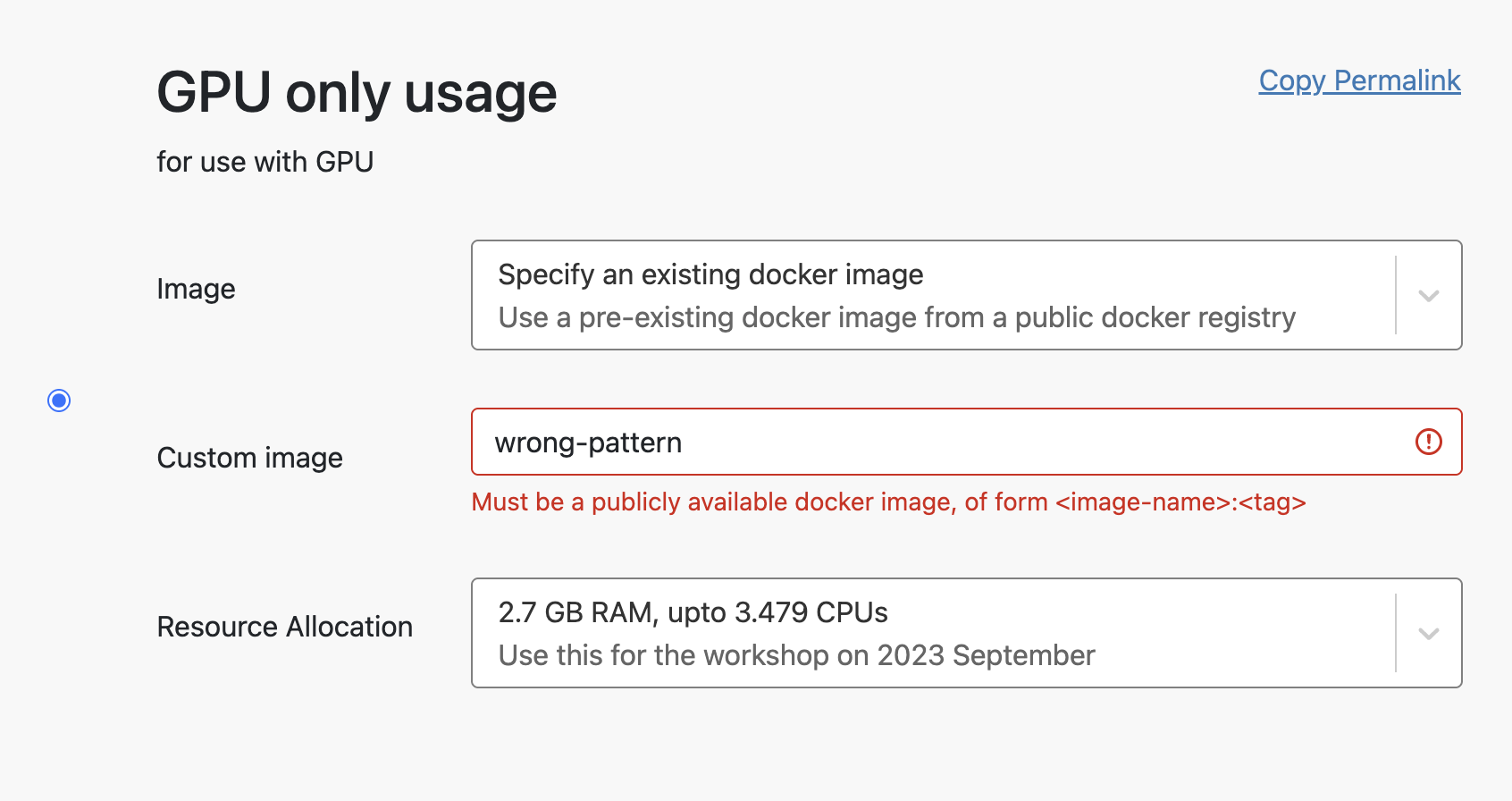
The “Specify an existing docker image” option, where users type their own image name.
You can combine this with choices so users can either pick a default image or type in their own.
Build from a repository
Users can also provide a GitHub repository URL and have BinderHub build a docker image from it on the fly. See Dynamic image building for setup and configuration details.